Postmixr Blog
How to Schedule Instagram Posts With the Official API (2026 Step-by-Step)
Connect a Business or Creator account, schedule feed posts and carousels via Meta’s API, and publish on time without phone reminders or unofficial bots.
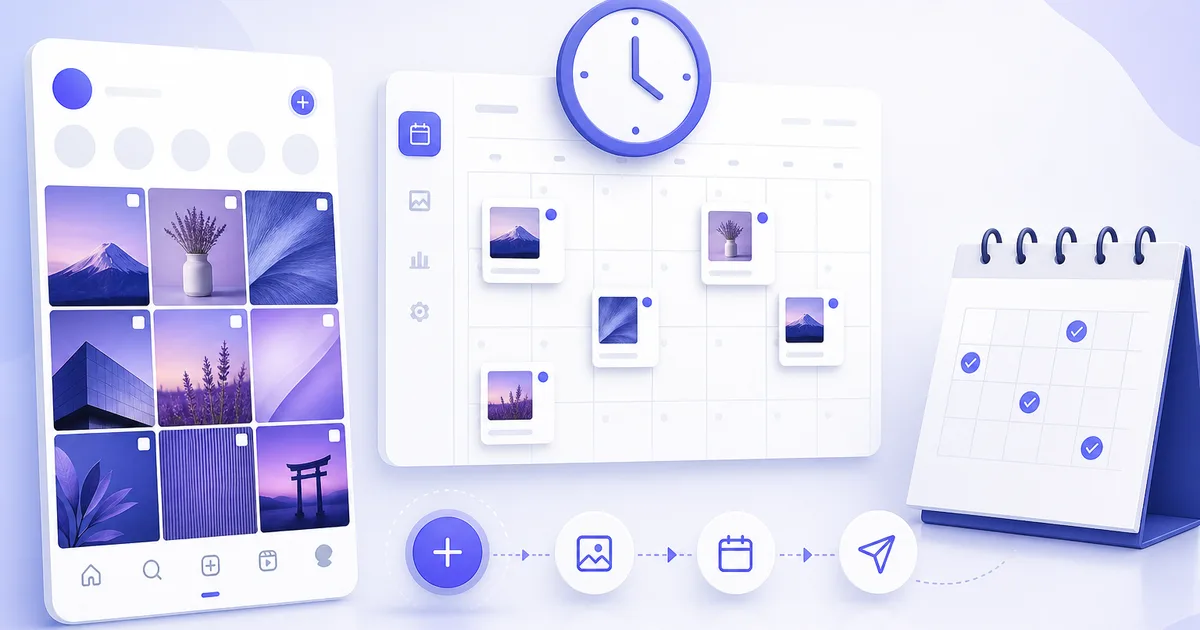
If you are still posting from your phone at random times, you are leaving consistency on the table. Learning to schedule Instagram posts lets you batch creative work, hit the times your audience is online, and avoid the “I forgot to post” panic.
This guide is for creators, small brands, and teams who want a repeatable workflow in 2026: connect once, plan in a calendar, and publish through Meta’s official APIs.
The short answer
| Step | What to do |
|---|---|
| 1 | Switch to Business or Creator and link a Facebook Page |
| 2 | Connect Instagram in your scheduler via Meta OAuth |
| 3 | Upload media, write caption, pick Reel vs feed |
| 4 | Set date/time in your workspace timezone |
| 5 | Review the calendar for collisions, then let the API publish |
Scheduling is not “set and forget” for every feature: Stories stickers, some collabs, and day-one API gaps may still need the app. For feed posts, Reels, and carousels, a proper scheduler is the standard path.
What you need before you schedule
- An Instagram Business or Creator account connected through Meta’s official APIs (personal-only workflows are limited).
- Your caption, media, and format decided: feed post, Reel, Story, or carousel each has different specs.
- A scheduler that publishes through the Instagram Graph API, not screenshot automation.
Optional but valuable:
- A weekly content calendar template so themes and slots are decided before you open the composer.
- Caption QA against the 2,200 character cap and ~125 character feed preview (details in our limits guide).
Step 1: Connect Instagram to your scheduler
- Open your scheduler and choose Connect Instagram.
- Complete Meta OAuth and grant the permissions needed to publish on your behalf.
- Confirm the correct profile appears in your workspace if you manage more than one brand.
If connection fails, re-check that the account is Professional (Business/Creator) and that you are an admin on the Facebook Page linked to the Instagram account. Token expiry is a common reason scheduled posts stop firing; reconnect when your tool warns you.
Step 2: Create the post
- Upload image or video (4:5 and 1:1 are common for feed; 9:16 for Reels).
- Paste your caption and hashtags; keep the first line strong because it shows in the feed preview.
- Pick post type (feed vs Reel) if your tool supports it.
- Set date and time in your timezone (or UTC if your team standardizes on that).
Before you approve the slot:
- Confirm hashtag count is 30 or fewer (a 31st tag can strip all hashtags on publish).
- Verify media dimensions match the post type you selected.
- If you cross-post copy from TikTok, edit for Instagram; do not paste identical blocks everywhere.
Step 3: Review the calendar
A visual calendar shows gaps and collisions. Two Reels at 9:00 AM on the same day is usually a mistake. Drag posts to reshuffle if your tool supports it.
Pair scheduling with planning:
- Tuesday education, Thursday promo beats random daily panic.
- Leave buffer slots for trending audio or news you cannot plan a month ahead.
- Mark posts Draft → Approved → Scheduled if you work with a client or manager.
Teams scheduling at volume often combine the calendar with bulk scheduling for text networks and the composer for Instagram media.
Platform limits worth knowing
| Limit | Rule of thumb |
|---|---|
| Caption | 2,200 characters max |
| Feed preview | ~125 characters before “more” |
| Hashtags | Up to 30 per post |
| Reels | Vertical 9:16 video via API container |
| Stories | Often limited vs in-app; check your scheduler |
- API publishing may not support every Story sticker or collab feature on day one; check your tool’s docs for current support.
- Failed publishes should surface as notifications with retry, not silent misses.
Official references: Instagram Content Publishing, IG User Media (caption field), and content publishing rate limits.
Common scheduling mistakes
| Mistake | Why it hurts | Fix |
|---|---|---|
| Weak first line of caption | Most viewers never tap “more” | Rewrite the first 125 characters last |
| Wrong aspect ratio | API reject or cropped feed | Match Reel vs feed specs before upload |
| Expired Facebook/IG token | Whole queue stops | Reconnect in settings proactively |
| Scheduling in app timezone only | Global brands miss peaks | Label UTC in your calendar doc |
| No failure alerts | Discover misses hours later | Use a scheduler with retry and errors |
How Postmixr fits in
Postmixr connects Instagram alongside TikTok, YouTube, Facebook, Threads, and more so one workspace holds your calendar, drafts, and publish queue. When a post fails, you get a clear error and can retry instead of discovering it hours later.
Practical workflow:
- Plan the week in our calendar template.
- Draft captions with limits in mind (character limits reference).
- Schedule Instagram media in the composer; use Bulk only for text-first networks.
- Monitor the queue after publish time for API errors.
Schedule your next week in one sitting
Connect your accounts, line up posts on the calendar, and publish through official platform APIs, free to start.
Get started freeScheduling and time zones
Pick one rule for your team and write it at the top of your calendar doc:
- UTC for everyone when you work across regions, or
- Local time for the brand when one country is the focus.
Your scheduler stores a timestamp; Instagram publishes at that instant. Mixing time zones row by row in a spreadsheet is how brands accidentally post at 3 AM. If you import from CSV for text networks, use the same ISO 8601 discipline described in bulk scheduling.
Free vs paid schedulers
Many tools offer a free tier for one account or limited queues. Postmixr lets you plan and schedule from one workspace; compare queue limits, supported post types, and whether Reels are included before you commit to a yearly plan elsewhere. The workflow matters more than the logo: connect API, calendar, retry on failure, clear caption errors.
When you evaluate options, run a one-week trial: schedule three feed posts and one Reel, intentionally trigger a recoverable error (wrong aspect ratio on a test account), and see whether the tool explains the fix. That test tells you more than a feature comparison PDF.
Next steps
- Download the social media calendar template and block your next seven days.
- Read Instagram caption and hashtag limits before batch day.
- If you also post short video on TikTok, see how to schedule TikTok videos.
Frequently asked questions
- Can I schedule Instagram Reels in advance?
- Yes, if your scheduler supports Reels via the official API. Upload vertical video, set type to Reel, and pick your time.
- Do I still need the Instagram app?
- You will still use the app for DMs, comments, and features the API does not expose, but publishing can run from your scheduler.
- Is scheduling against Instagram's rules?
- Scheduling through approved APIs is standard for businesses and creators. Avoid tools that automate likes or DMs in ways that violate Meta's terms.
- What account type do I need to schedule Instagram posts?
- A Business or Creator account linked to a Facebook Page is required for API-based scheduling. Personal accounts have limited third-party publish options.
- How far in advance can I schedule Instagram posts?
- Most schedulers let you queue days or weeks ahead. Confirm your tool's queue limits and whether it retries failed API publishes.
- Why did my scheduled Instagram post fail?
- Common causes include expired tokens, caption over 2,200 characters, unsupported post types, or media that does not meet aspect ratio rules. Check the error in your scheduler and fix before retrying.
Related posts
Instagram Caption Character Limit for Scheduled Posts (2026)
Caption max 2,200 characters but ~125 show before "more"—limits for scheduled Instagram posts, hashtags, API publish errors, and how schedulers enforce caps.
Weekly Instagram and TikTok Calendar Template for Solo Creators
A weekly content calendar layout for Instagram and TikTok—themes, approval columns, and scheduler-ready slots you can copy into Sheets, Notion, or Postmixr.
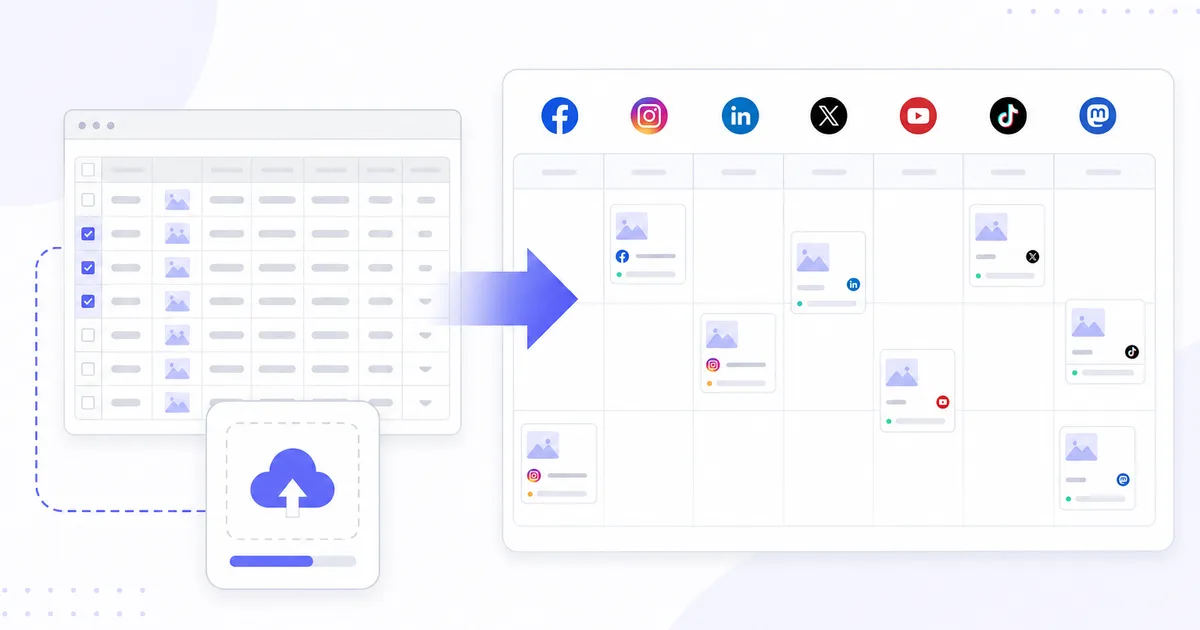
How to Bulk Schedule Facebook and Threads Posts With a CSV (Free)
Bulk schedule Facebook Page and Threads posts from a two-column CSV—ISO datetimes, timezone rules, free validation, and when to use calendar batching for Instagram instead.